

Fast Answer Box: What is a Seller SKU on Amazon FBA?
A Seller SKU is the seller-created identifier you assign to a product (and each sellable variation) inside Amazon Seller Central to track and manage your inventory.
- You control the Seller SKU naming and use it to keep listings, reports, uploads, and internal workflows consistent.
- You’ll commonly see it in inventory/listing views and in inventory files you upload or export.
- It’s not the same as an ASIN (Amazon’s public catalog identifier) or an FNSKU (an Amazon barcode used for some FBA labeling workflows).
- A clean SKU system makes it easier to coordinate prep, variations, and shipments—especially when multiple suppliers or a prep provider are involved.
Boundary note: Seller Central screens and barcode settings can differ by account and workflow—double-check your setup before you print labels or ship.
If you’ve ever wondered why you see so many different “codes” on Amazon, the key is understanding who controls each identifier and what it’s used for.
Seller SKU basics: what it is, who controls it, and why it matters
A Seller SKU is your internal “handle” for a product in Seller Central—think of it as the identifier that helps you keep your catalog organized when you’re dealing with multiple products, variations, shipments, and spreadsheets.
- Primary job: internal tracking (inventory management, reporting, reconciliation).
- Operational value: prevents mix-ups when your catalog grows (especially with variations like size/color).
- Where it shows up: listing/inventory views, exports/reports, and bulk upload templates.
Boundary notes:
- Some fields, menu names, and workflows can look different depending on your account and tools.
- The label barcode used for FBA units is not determined by your Seller SKU alone—barcode preferences and listing settings matter.
To remove the most common confusion, start with who creates the Seller SKU and when it gets assigned.
Who creates the Seller SKU (Amazon or you)?
In most cases, you (the seller) create the Seller SKU when you add a product or upload inventory, and you can choose a naming pattern that matches your internal catalog.
- You typically set the SKU during listing creation or inside the SKU field in a bulk upload template.
- Creating your own SKUs is useful because you can encode what matters to you (model, size, color) in a consistent way.
- For multi-variation products, a consistent SKU structure makes it much harder to send the wrong version to FBA.
Boundary notes:
- Some workflows may display a default value or auto-filled field; treat that as a prompt to verify—not as a guarantee that the SKU matches your internal naming needs.
- If you use third-party listing tools, the exact SKU field behavior may differ.
What Seller SKU controls (and what it doesn’t)
A Seller SKU mainly controls your internal tracking inside Seller Central and any workflows that depend on your catalog data.
- Helps you organize products in inventory views, exports, and reports.
- Helps you reconcile what you planned to ship vs what arrived (especially when you ship multiple SKUs at once).
- Helps your team or partners map the right variation to the right prep instructions.
Boundary notes:
- Don’t assume your Seller SKU appears on FBA unit labels—unit label barcodes depend on barcode preferences and label settings.
- Don’t assume customers can search your SKU—buyers typically rely on the listing, not your internal SKU.
Now that the Seller SKU role is clear, it’s worth addressing a common setup question: do you “need” it in every workflow?
Do you need a Seller SKU? What if you don’t provide one?
Practically speaking, you should plan to have a Seller SKU for every sellable product and variation so your inventory stays trackable—even if the exact “required” behavior varies by workflow.
- If you create listings manually, you’ll typically see a SKU field as part of the listing/inventory setup.
- If you use bulk uploads, the SKU is commonly used as a key field in inventory files and templates.
- If you don’t define SKUs consistently, your exports, reports, and prep instructions can become harder to reconcile.
Boundary notes:
- Whether a specific workflow forces you to enter a SKU can vary by template or tool—confirm in your listing workflow.
- Even if a workflow accepts a default, it may not match your internal system, which becomes painful at scale.
With that foundation, the biggest “aha” usually comes from comparing SKUs to the other identifiers you see in Amazon and FBA.
Seller SKU vs ASIN vs FNSKU vs UPC/EAN/GTIN
These identifiers are often mixed up because they can all look like “codes,” but they serve different purposes and are controlled by different parties.
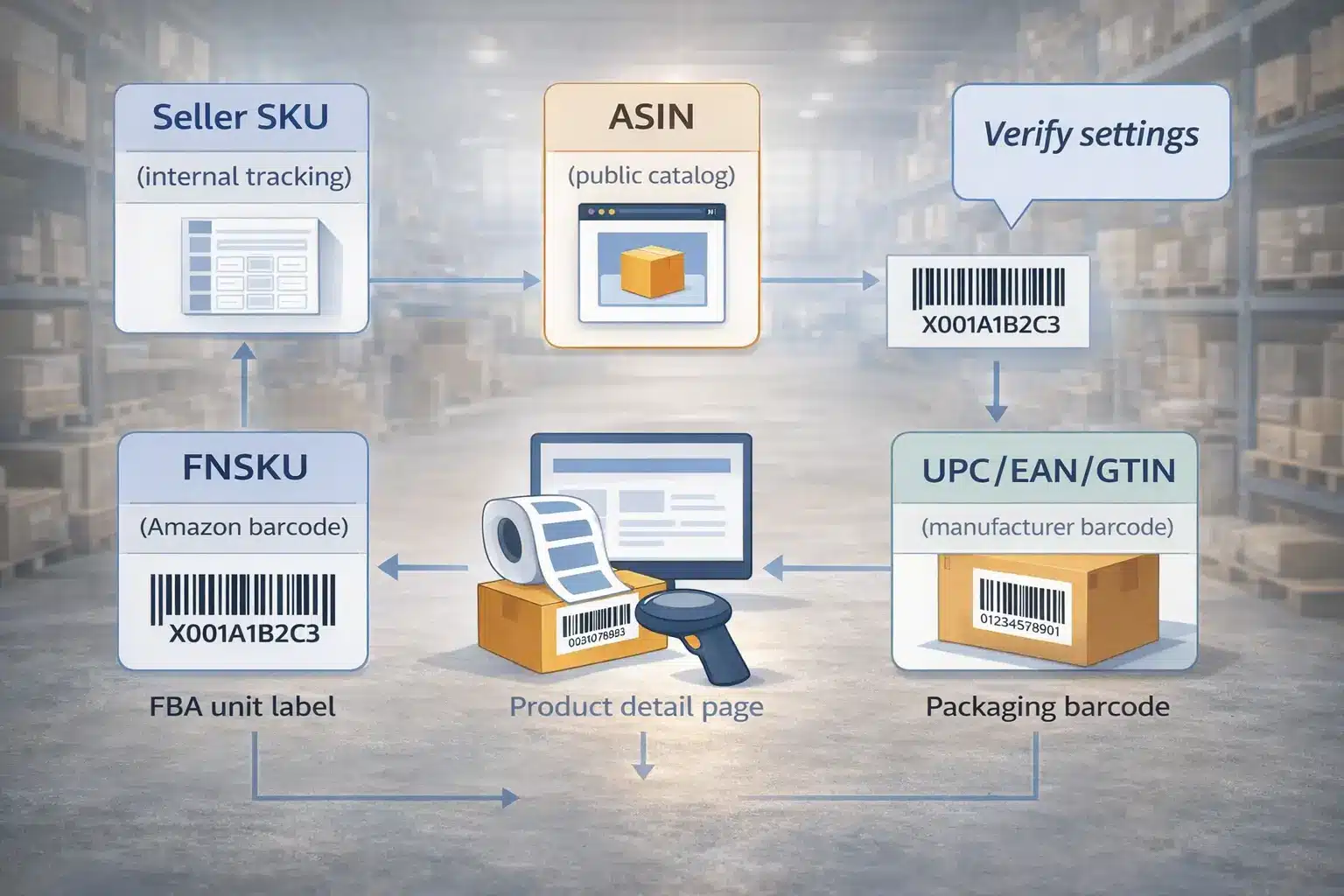
Boundary note up front: Which barcode is used on FBA unit labels can depend on barcode preferences and listing settings—always verify the current requirement for your specific product before labeling.
If you want a quick “which is which,” start with the table below and then use the decision bullets for the FBA label question.
Quick comparison table: what each identifier means and where it’s used
Here’s a practical comparison you can use to keep “tracking IDs” and “label IDs” straight.
| Identifier | Who controls it | What it’s for | Where you’ll see it | Typical use in FBA workflows |
|---|---|---|---|---|
| Seller SKU | Seller | Internal tracking key for your catalog | Seller Central inventory/listing views, exports, uploads | Organizing products/variations; mapping prep instructions; reconciling shipments |
| ASIN | Amazon | Public catalog identifier for a product detail page | Product pages, seller tools, some reports | Referencing the catalog item; not used as your internal SKU |
| FNSKU (Amazon barcode) | Amazon (per seller) | Seller-specific barcode for certain FBA identification/labeling cases | FBA label PDFs and some FBA-related screens | Used on unit labels in some configurations to identify inventory by seller |
| UPC/EAN/GTIN (manufacturer barcode) | Brand/Manufacturer (standards) | Global trade identifier used for product identification | Product packaging barcode; listing setup fields | May be used for labeling in some cases depending on configuration/requirements |
Boundary notes:
- Barcode rules and the “Amazon barcode vs manufacturer barcode” choice are settings-dependent; confirm in your Seller Central setup and current FBA barcode policy before labeling.
- If you’re planning large shipments, re-check Amazon’s latest barcode requirements because policies can change over time.
Now let’s translate the comparison into a practical “labels vs tracking” decision.
Which identifier should you use for FBA labels?
Use the Seller SKU for internal tracking, and treat the unit label barcode as a separate decision that depends on your barcode preference and listing configuration.
- For internal tracking: use the Seller SKU (and keep it stable over time).
- For public product reference: use the ASIN (customers and Amazon catalog references rely on it).
- For FBA unit labels: you may be labeling with an Amazon barcode (such as FNSKU) or using a manufacturer barcode (UPC/EAN), depending on settings and requirements.
- For listing identity: UPC/EAN/GTIN is often part of product identification in listing setup, but it’s not the same as your Seller SKU.
Verification checklist (before printing labels):
- Confirm which barcode type your listing is set to use for FBA (Amazon barcode vs manufacturer barcode, where applicable).
- Generate the label file you intend to use (and confirm it matches the right product/variation).
- If someone else prints labels (supplier or prep provider), share the exact label file and a SKU-to-variation mapping sheet.
Seller Central how-to: find, set, and export your Seller SKUs
You can typically find the Seller SKU in your inventory/listing management views and in exported reports that include listing data.
Boundary note: Seller Central menus and page names can vary by account view and updates. The steps below describe common paths and the end goal (locate the SKU field), not a single rigid click-path.
If you want to move fast, start by finding the SKU in your inventory view, then export a SKU list you can share with your team or partners.
Where to find your Seller SKU in Seller Central
To find a Seller SKU quickly, focus on inventory or listings views that display SKU as a column/field.
- Open Seller Central and go to your inventory or listings management area (often labeled “Manage Inventory” or similar).
- Look for a SKU column/field in the table for your products.
- If you don’t see it, use table customization (if available) to show the SKU column.
- Use search or filters to locate a specific SKU, or search by product name and then confirm the SKU in the row.
- Copy the SKU for your internal sheet or for matching against shipment plans.
Boundary notes:
- If your interface labels differ, use the Seller Central search bar to find “inventory,” “manage inventory,” or “reports,” then look for a view that includes the SKU field.
- Some reports and templates show SKU as the key field even when the UI looks different.
Once you can find the SKU in your day-to-day view, it’s worth knowing where it gets set during listing creation and bulk uploads.
Where to set the SKU when creating a listing (and in bulk uploads)
You typically set the Seller SKU when you create the listing, or you include it in the SKU field of an inventory upload template.
- Decide on your SKU pattern (especially for variations).
- When creating a listing, enter the SKU where the workflow asks for your internal identifier.
- If using bulk uploads, fill the SKU field in your template file consistently for each sellable child variation.
- After creation/upload, verify the SKU appears in your inventory/listings view.
- Export a listing/inventory report if you need a cross-check for your internal sheet.
Why consistency matters:
- Variations need clean one-to-one mapping (each sellable variation should be traceable to a unique SKU).
- Prep and labeling instructions often depend on SKU-level detail (especially size/color).
- Exports and reconciliations are easier when SKUs don’t change unpredictably.
Boundary notes:
- Different templates and tools can have different required fields—confirm your template’s required columns.
- If you use multiple systems (ERP, 3PL, spreadsheets), align your SKU naming so one SKU maps to one sellable unit.
Once you can set and verify SKUs, exporting a clean SKU list becomes the easiest way to prevent handoff mistakes.
How to export a SKU list (and why it helps for prep handoffs)
Exporting a SKU list gives you a reliable “source of truth” you can share with your team, suppliers, or a prep provider.
- Locate the reporting/export area in Seller Central (often under “Reports” or similar).
- Download a report that includes listing or inventory fields (look for a report that contains SKU).
- Confirm the export includes SKU plus enough detail to distinguish variations (name, size/color attributes where available).
- Use the export to build a simple mapping sheet (SKU → variation attributes → label type used).
- Share the mapping sheet along with the correct label file when someone else is labeling or packing.
Boundary notes:
- Report names can vary; focus on the goal: an exported file that clearly lists SKUs and their associated products/variations.
- If your export doesn’t include enough variation detail, add your own “variation attributes” columns in the mapping sheet.
Decision guide: build a SKU naming system that scales
A scalable SKU naming system is best practice—not a platform rule—but it’s one of the simplest ways to reduce confusion across variations, replenishment cycles, and prep handoffs.
- A good SKU should be unique, readable, stable over time, and consistent across your catalog.
- It should encode what your operations actually need to distinguish (often model + variation attributes like size/color).
- It should be easy for a human to verify quickly (especially when labeling or picking).
Boundary note: Avoid claiming strict limits (like maximum SKU length or allowed characters) unless you confirm them in your current Seller Central workflow or official documentation.
If you want a simple approach, use a pattern that stays consistent and keeps variation attributes obvious.
SKU naming checklist (with simple examples)
Use a consistent SKU pattern that makes each sellable unit instantly identifiable.
Checklist:
- Make every SKU unique (one SKU = one sellable unit).
- Use a consistent order for segments (e.g., Brand–Product–Model–Color–Size).
- Keep segments short but readable (avoid random strings unless you also maintain a mapping sheet).
- Encode the attributes most likely to cause picking/labeling mistakes (size, color, pack count).
- Keep SKUs stable once products are live (treat renames as a controlled change with documentation).
- Avoid special characters that can confuse systems or spreadsheets (when in doubt, stick to letters, numbers, and hyphens).
Examples (illustrative):
- Single product:
ACME-MUG-12OZ-WHT - Variation (color + size):
ACME-TSHIRT-BLK-M/ACME-TSHIRT-BLK-L - Multipack:
ACME-SOCK-BLK-M-3PK
Avoid:
- Reusing an old SKU for a different product.
- Changing SKUs midstream without updating every mapping sheet and partner instruction.
- Encoding too many details so the SKU becomes unreadable.
Variations: one SKU per child (and how to encode size/color)
Operationally, the safest default is one unique Seller SKU per purchasable child variation (each distinct size/color/model you can sell).
- Each child variation represents a distinct sellable unit; give each one its own SKU.
- Encode the minimum attributes needed to avoid confusion (often color + size + pack count).
- Keep the “shared product identity” in the earlier SKU segments (brand/product/model), and reserve later segments for variation attributes.
Mini-table: example encoding pattern
| Variation attributes | Example SKU pattern |
|---|---|
| Color only | ACME-BOTTLE-RED / ACME-BOTTLE-BLU |
| Size only | ACME-BOTTLE-16OZ / ACME-BOTTLE-24OZ |
| Color + size | ACME-TSHIRT-BLK-M / ACME-TSHIRT-BLK-L |
Boundary notes:
- Variation setup can differ by category and listing strategy; adapt the pattern to your catalog.
- If your internal systems already use a master SKU, keep the mapping consistent so each sellable child still has a unique identifier.
Once variations are clean, it’s worth covering the edge cases that commonly break SKU clarity.
Quick notes for bundles, kits, and multipacks
Bundles, kits, and multipacks often fail in the handoff phase because pack counts and components get mixed.
- Give each sellable configuration its own SKU (bundle SKU ≠ single-unit SKU).
- Keep component SKUs stable, and document which components belong to which bundle SKU.
- Include pack count in the SKU (or in your mapping sheet) so labeling and carton planning match what customers buy.
Boundary notes:
- Exact listing setup depends on category and your bundle strategy; treat this as operational guidance.
- If multiple suppliers provide components, double down on the mapping sheet (SKU → contents → pack count).
Now let’s connect SKUs to the real FBA workflow where the biggest mistakes happen: labeling and prep handoffs.
FBA process: prep & labeling handoff (SKU ↔ FNSKU) before you ship
Seller SKU is for tracking, while the barcode on your units depends on barcode preferences and labeling settings—so the critical task is keeping a clear mapping between SKU → variation → label type before cartons leave your supplier or prep warehouse.
Steps (high-level handoff flow):
- Verify barcode preference and labeling requirement for each product/variation.
- Generate the correct label file (and confirm it matches the right product/variation).
- Build a mapping sheet (Seller SKU → variation attributes → label type used).
- Share the mapping sheet and the correct label file with whoever labels your units.
- Do a final spot-check (a few units per variation) before the full batch is labeled and packed.
Boundary notes:
- Barcode requirements and label behavior can change; verify current requirements for your listing.
- If multiple variations share similar packaging, extra verification is needed to avoid mixing.
To reduce label confusion, start by confirming the barcode preference before any labels get printed.
Before you print labels: confirm barcode preference and label type
Label output can depend on settings, so treat “confirm barcode preference” as a checkpoint—not an assumption.
- Identify which barcode type your listing is set to use for FBA (Amazon barcode vs manufacturer barcode, where applicable).
- Confirm the label you plan to print matches that choice (and matches the correct variation).
- If you’re labeling at a supplier or prep center, ensure they print from the exact label file you provide.
- If anything looks inconsistent (e.g., label text doesn’t match the variation), pause and verify before labeling the full batch.
Boundary notes:
- Interface and eligibility can vary by product and account; focus on confirming the outcome (correct label type for the listing).
- When in doubt, regenerate labels after verifying settings to avoid labeling the wrong identifier.
Once the label choice is verified, the simplest way to prevent mistakes is a clear handoff checklist.
Prep provider handoff checklist: what to share (SKU, variation, and label mapping)
If someone else is receiving, labeling, or packing your inventory, share a short checklist so they can’t guess.
Checklist (minimum fields):
- Seller SKU (per variation)
- Product name + variation attributes (size/color/model)
- Quantity per SKU/variation in the shipment
- Label type to use (Amazon barcode vs manufacturer barcode, where applicable)
- The exact label file (PDF) name/date/version you want used
- Any prep notes (polybagging, suffocation warning, bundles/kits requirements)
- Carton plan or box contents summary (so cartons remain traceable)
Boundary note: Adapt fields to your workflow, but always include SKU + variation attributes + label file reference before mass labeling.
With the mapping sheet in place, a short do/don’t list can prevent the most common “oops” moments before pickup.
Do/Don’t checklist to avoid wrong-variant and wrong-label shipments
A few simple checks reduce the risk of costly relabeling or inbound confusion.
Do:
- Keep one clear mapping sheet for the shipment (SKU → variation → label type → quantity).
- Name label files in a way that matches your SKU and variation (so teams don’t guess).
- Spot-check labeled units from each variation before labeling the entire batch.
- Keep cartons traceable (carton plan and box contents should match the variation breakdown).
Don’t:
- Mix variations in a single unlabeled pile during labeling.
- Assume label type from memory—re-verify settings for each listing if anything changed.
- Reuse old label PDFs without confirming they match the current listing configuration.
- Change SKUs midstream without updating mapping sheets and partner instructions.
Even with good processes, there are two issues that commonly create confusion: SKU governance (changes/reuse) and labels that show unexpected identifiers.
Risks & troubleshooting: SKU governance and label confusion
Most “identifier problems” are self-inflicted: SKUs get reused or changed without a clean mapping, or label files get printed without verifying settings.
Risk checklist (high-level):
- Changing SKUs without updating internal sheets, exports, and partner instructions.
- Reusing SKUs for new products (especially when the packaging looks similar).
- Allowing duplicate SKUs across variations or different products.
- Printing labels from the wrong file version (or for the wrong variation).
Boundary note: Exact editability and settings behavior can vary by workflow; the safest approach is to keep SKUs stable and verify label settings before shipping.
If you want the safest defaults, start with the “don’t reuse SKUs” rule and document any changes you must make.
Changing or reusing SKUs: what can break (and safer defaults)
Changing or reusing Seller SKUs can break your traceability—even if nothing “breaks” in the listing itself.
Risk checklist:
- Reports and exports become harder to reconcile (old SKU vs new SKU).
- Prep instructions can drift (partners label based on an outdated SKU sheet).
- Replenishment planning gets messy (historical performance tied to old SKU naming in your internal systems).
- Multi-supplier shipments become easier to mix up (same SKU used for different items).
Safer defaults:
- Don’t reuse an old SKU for a different product.
- Keep SKUs stable once a product is active.
- If you must change a SKU, create a temporary mapping table (old SKU → new SKU) and share it with every stakeholder.
This ties directly into another common failure mode: duplicate SKUs.
Duplicate SKUs: why they create tracking and prep confusion
If two products share the same Seller SKU, it becomes harder to tell which item a report, export, or instruction refers to—especially under time pressure.
- Tracking ambiguity: exports and spreadsheets can “collapse” two different items into one identifier.
- Higher handoff risk: prep partners can label the wrong variation if the SKU isn’t unique.
- Slower troubleshooting: when something goes wrong, it’s harder to trace which product was intended.
Prevention:
- Enforce a “one SKU = one sellable unit” rule.
- Use a consistent naming pattern for variations and pack counts.
- Spot-check your exports for uniqueness before you send a mapping sheet to a partner.
If your labels are still showing an unexpected identifier, the issue is usually the label choice or settings—not your Seller SKU.
Troubleshooting: label shows ASIN instead of FNSKU
Seller SKU typically doesn’t determine what appears on your unit label; label output depends on settings and the label file you printed.
Troubleshooting steps:
- Confirm the label file you printed is the correct one for the product and variation.
- Verify your barcode preference/label type for that listing (Amazon barcode vs manufacturer barcode, where applicable).
- Regenerate labels after verifying settings, so you’re working from a fresh file.
- If a supplier or prep provider printed labels, confirm they used the exact file you sent (not a prior version).
- Spot-check a small sample before you ship the full batch to FBA.
Boundary note: Interfaces and requirements can differ by product and account. Focus on verifying the outcome—correct label type for the listing you’re shipping.
If you want quick answers to common edge cases (requirements, changes, duplicates, buyer search), the FAQ below captures the most common follow-ups.
FAQ
Do I need to provide a Seller SKU on Amazon, and what happens if I don’t?
- Q: Do I need to provide a Seller SKU on Amazon, and what happens if I don’t?
A: You should plan to have a Seller SKU for every sellable product and variation so your inventory stays trackable. Some workflows may accept a default or behave differently depending on the tool or template you use, so verify your specific listing workflow in Seller Central. If you don’t define SKUs consistently, exports, reports, and prep instructions become harder to reconcile.
Can I change a Seller SKU on Amazon, and should I reuse old SKUs?
- Q: Can I change a Seller SKU on Amazon, and should I reuse old SKUs?
A: Treat SKUs as stable identifiers and avoid reusing them for different products. Changing or reusing SKUs can create confusion in exports, spreadsheets, and partner instructions, especially if you ship many variations. If a change is unavoidable, keep a mapping table (old SKU → new SKU) and share it with everyone involved.
What happens if two products share the same Seller SKU?
- Q: What happens if two products share the same Seller SKU?
A: Duplicate SKUs create tracking ambiguity and increase the chance of wrong-variant labeling or packing. Reports and exports can become harder to interpret, and partners may not be able to distinguish variations under time pressure. The safest default is one unique SKU per sellable unit.
Why does my label show ASIN instead of FNSKU, and does Seller SKU affect that?
- Q: Why does my label show ASIN instead of FNSKU, and does Seller SKU affect that?
A: Seller SKU typically doesn’t control the unit label barcode; settings and the label file you printed do. Re-check your barcode preference/label type for the listing, regenerate labels after confirming settings, and verify your supplier or prep provider printed from the correct file version. Because settings can vary, focus on confirming the correct label outcome before shipping.
Can a buyer search Amazon using a Seller SKU?
- Q: Can a buyer search Amazon using a Seller SKU?
A: Generally, buyers rely on the product listing (title/brand) and public identifiers like the ASIN—not your internal Seller SKU. Seller SKUs are designed for seller-side tracking in Seller Central. For customer support, it’s usually better to reference the order details and the listing information rather than internal SKUs.
Do I need one SKU per child variation (size/color)?
- Q: Do I need one SKU per child variation (size/color)?
A: As an operational default, yes—each sellable child variation should map to a unique SKU. This makes it much easier to pick, label, and ship the correct version to FBA, especially when packaging is similar across variations. Variation setups can differ by category, so adapt your SKU pattern to keep the attributes that matter obvious.
Summary & Next Steps
- Treat Seller SKU as your internal tracking key, and keep it stable over time.
- Use the ASIN for public catalog reference, and treat FBA unit label barcodes (often FNSKU or manufacturer barcode) as a separate, settings-dependent decision.
- Build a variation-friendly SKU pattern so each sellable unit has a unique, readable identifier.
- Before shipping to FBA, verify label settings, generate the correct label file, and share a SKU-to-variation mapping sheet with whoever labels your products.
- If labels look “off,” pause and verify the label file and barcode preference before the full batch ships.
If you’re shipping from China to Amazon FBA and coordinating multiple suppliers or variations, a China-side prep + consolidation workflow can reduce handoff friction:
- Consolidate inventory from multiple suppliers, then label and carton-plan against a single SKU-to-variation sheet.
- Confirm label type and label files before mass labeling to reduce avoidable rework.
- If you prefer a one-stop setup, FBABEE offers prep services and logistics support for FBA workflows: FBABEE prep services and services overview.