
Fast Answer: There’s No Single Amazon FBA Address
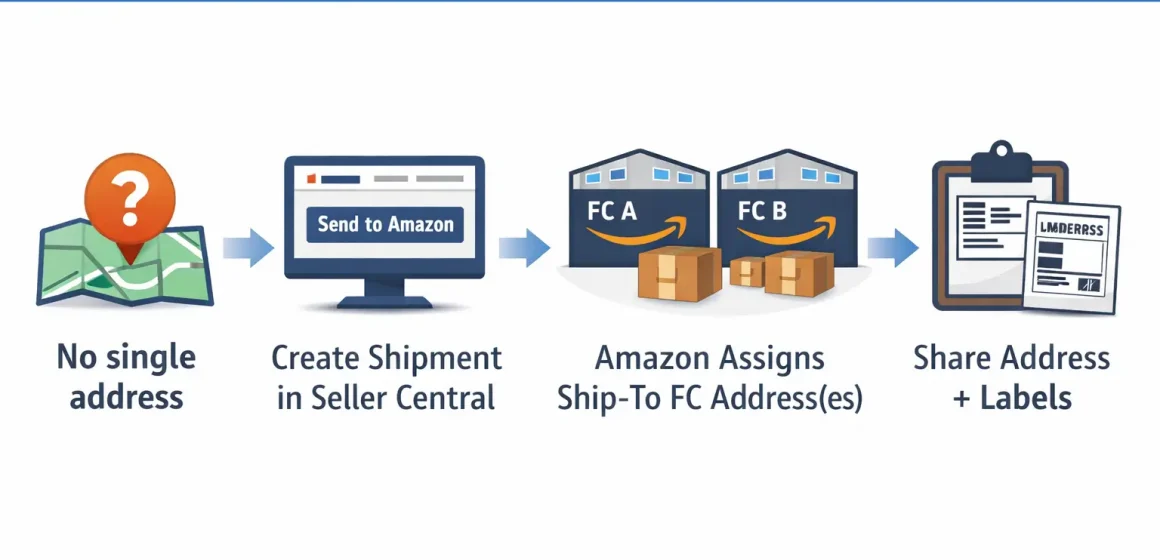
There is no single, permanent “Amazon FBA address.” For inbound inventory, Amazon assigns one (or more) Ship-to Fulfillment Center (FC) address(es) only after you create a shipment in Seller Central (Send to Amazon).
- The address you need is the Ship-to address on your shipment plan (and on your shipment/box labels).
- One shipment can be split into multiple destinations, meaning multiple Ship-to addresses.
- Do not ship to a random FC address or a public “warehouse list” address—ship to the address Amazon assigned for your shipment.
Official references:
- Send FBA inventory to Amazon (shipment workflow): https://sellercentral.amazon.com/help/hub/reference/external/G201021820?locale=en-US
- FBA Address Tips (address hygiene): https://sellercentral.amazon.com/help/hub/reference/external/G200316850?locale=en-US
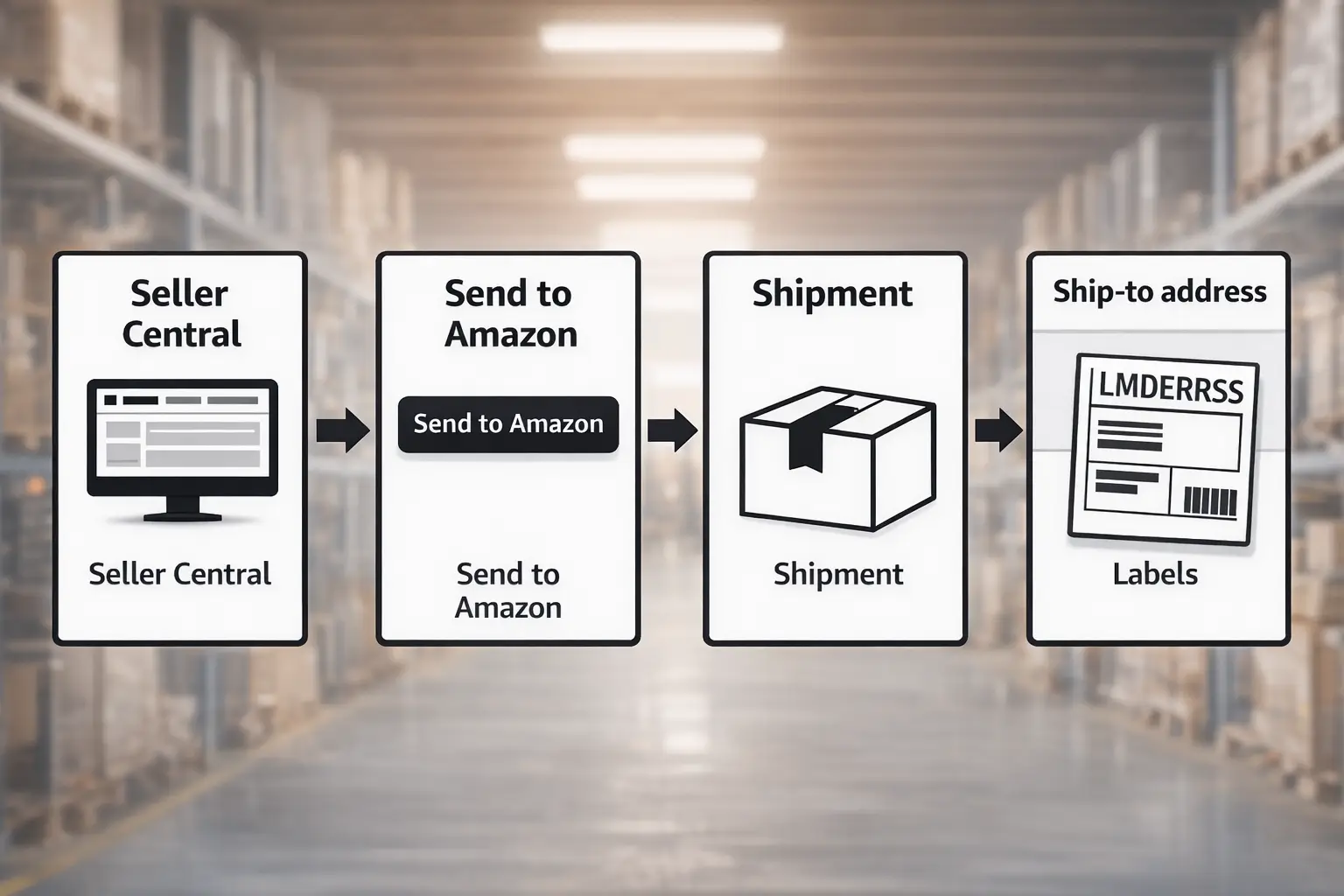
The ship-to address appears inside the shipment you create in Seller Central. Here’s the safest way to find it:
- In Seller Central, go to your inbound workflow (often labeled Send to Amazon or Manage/Send FBA shipments).
- Create or open the specific shipment you are sending.
- Locate the Ship-to / Destination section for the shipment (this is the FC address Amazon assigned).
- Download/print the shipment and box labels (the destination and FC code are typically shown there as well).
- Copy/paste the Ship-to address exactly into your supplier or forwarder instructions.
Boundary note: Seller Central menus can differ by account and updates. If you don’t see the same wording, follow the concept path: Create shipment → View shipment → Ship-to/Destination address.
Do You Need a Shipment Plan Before You Can Get the Address?
Yes. The valid ship-to address comes from the shipment you create—it is not something you can safely “look up” in advance.
- Amazon assigns the destination during the shipment creation process.
- If you change packing details or the shipment structure, destinations can change—so re-check the ship-to address and labels before dispatch.
Multiple Amazon FBA Addresses: How to Handle Split Shipments
Split shipments happen when Amazon assigns more than one destination for the shipment you created. That means you may have multiple ship-to addresses and must keep cartons aligned to the correct destination.
Split shipment playbook
- Export or note the ship-to address(es) and shipment ID(s) from Seller Central.
- Confirm how many cartons belong to each destination.
- Ensure the supplier applies the correct box labels for cartons going to each destination.
- Ship cartons to destination A using destination A’s ship-to address and label set; repeat for destination B (and so on).
- Do a final destination-to-carton check before pickup.
Mini-template you can send your supplier (copy/paste)
- Destination 1
Shipment ID: ______
Ship-to address: ______
Cartons: ___ cartons (carton #___–___)
Label file: ______ (PDF) - Destination 2
Shipment ID: ______
Ship-to address: ______
Cartons: ___ cartons (carton #___–___)
Label file: ______ (PDF)
Carrier Label vs Shipment Labels: The Ship-To Must Match
In general, the ship-to destination on carrier paperwork and labels should align with the ship-to FC address assigned in your Seller Central shipment. Mismatches can create delays, rerouting, or refusal risk.
Warnings
- Don’t reuse an old ship-to address from a previous shipment.
- If you edit the shipment plan, re-download labels and reconfirm destinations.
- Follow address hygiene best practices to avoid avoidable issues: Seller Central – FBA Address Tips
If Your Inventory Isn’t Ready Yet: What to Put on Supplier Forms
If a supplier asks for the FBA address before production is complete, use safe wording and avoid guessing a fulfillment center.
Safe wording to use
- “Amazon assigns the final ship-to address after we create the FBA shipment plan. We’ll provide the confirmed ship-to address(es) and labels once the shipment is created.”
What you can prepare now
- Packaging/carton plan (estimated carton count and unit-per-carton target)
- Labeling plan (unit labels, carton labels)
- Split shipment readiness (plan for flexible carton allocation)
- Ship-from details for pickup and contact info
Common Amazon FBA Address Mistakes (and a Pre-Ship Final Check)
Most common mistakes
- Using an Amazon corporate address (not an inbound FC ship-to)
- Copying a ship-to address from an old shipment
- Using a public “FBA warehouse list” as ship-to instructions
- Shipping before the shipment plan is finalized
- Split shipment error: mixing cartons for different destinations or applying the wrong labels
- Carrier label ship-to mismatch vs the assigned destination
Pre-ship final check (5 minutes)
- Shipment ID(s) confirmed
- Ship-to address(es) copied from the current shipment plan
- Correct label PDFs sent to supplier/forwarder
- Carton allocation per destination confirmed (if split)
- Supplier confirmed they will not ship until labels + ship-to match
Prep Center vs Shipping Direct to Amazon: How the Address Changes
If you ship directly to Amazon, you use the assigned FC ship-to address from your shipment plan. If you ship to a prep center first, your supplier ships to the prep center address, and the prep center later ships to the assigned FC(s).
Prep center first can help when
- You have multiple suppliers and need consolidation
- You need labeling, kitting/bundling, inspection, or carton planning
- You want one party to manage carton allocation and labels for split shipments
Boundary: Even with a prep center, Amazon still assigns final FC destination(s) through the shipment plan.
Supplier/Freight Forwarder Info Pack: What to Send (Template)
The “Amazon FBA address” is only one piece. Send a complete info pack to prevent mistakes:
Info pack checklist
- Shipment ID (or IDs, if split)
- Ship-to address(es) exactly as shown in Seller Central
- Label files (box/carton labels; and shipment labels if applicable)
- Carton allocation (cartons per destination; carton numbering ranges)
- Ship-from address (supplier or consolidation location)
- Readiness/pickup window
- Carrier method (partnered/non-partnered, if applicable)
- Contact name + phone/email for delivery issues
- Special instructions (pallet vs carton handling, if relevant)
Split shipment note: Provide one destination block per ship-to address, each with matching cartons and label file.
What Not to Do: Don’t Use Public ‘FBA Warehouse Address Lists’ as Ship-To Addresses
Short answer: No—do not use public FC address lists as inbound ship-to instructions. The only valid address is the ship-to address assigned to your shipment plan.
Why this goes wrong
- Public lists are often incomplete or outdated.
- You can ship to the wrong FC (not assigned to your shipment).
- Labels won’t match the destination, increasing delay/refusal/reroute risk.
What to do instead
- Create the shipment in Seller Central and use the generated ship-to address(es) and label files from that shipment.
If you’re dealing with multiple suppliers, split shipments, or complex prep/labeling, consider routing inventory to a consolidation/prep partner first. That can simplify carton allocation, labeling, and the “what to send” package for each destination. (Optional reference: https://fbabee.com/)
FAQ: Amazon FBA Address and Ship-To Destinations
Is there a single address for Amazon FBA, or does it change?
A: It changes. Amazon assigns the ship-to FC address per shipment plan, and one shipment can be split into multiple destinations.
Where do I find the Amazon FBA ship-to address in Seller Central?
A: Create/open your shipment (Send to Amazon) and copy the ship-to/destination address shown in shipment details and on the label PDFs.
Do I need to create a shipment plan before I can get the address?
A: Yes. The ship-to address is assigned during shipment creation; don’t guess it in advance.
Why do I get multiple addresses (split shipments) and what should I send my supplier?
A: Amazon may assign multiple FC destinations. Send your supplier a per-destination block with ship-to address, shipment ID, carton count, and the matching label file—don’t mix cartons across destinations.
What are the most common Amazon FBA address mistakes?
A: Shipping before finalizing the plan, reusing old addresses, using public FC lists, label/address mismatches, and mixing split-shipment cartons.
Can I use a public list of Amazon FBA warehouse addresses?
A: No. Use only the ship-to address assigned to your shipment plan and the matching label files.
Summary: Use the Shipment Plan’s Assigned Ship-To Address Every Time
There’s no single Amazon FBA address. The correct address is the ship-to FC address assigned in your Seller Central shipment plan—sometimes more than one.
Quick next steps
-
- Create/open your shipment and copy the ship-to address(es).
- Download and share the correct label files.
- If split, allocate cartons per destination and keep labels aligned.
- Run a final pre-ship check before pickup.