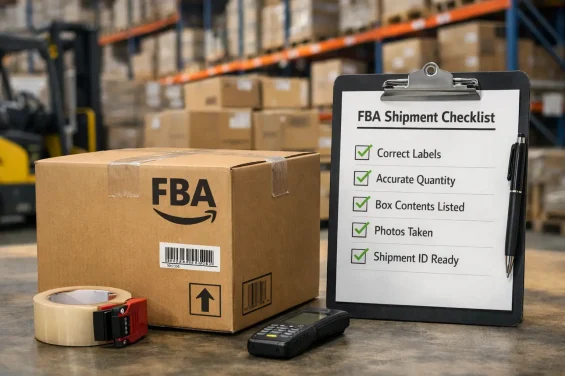

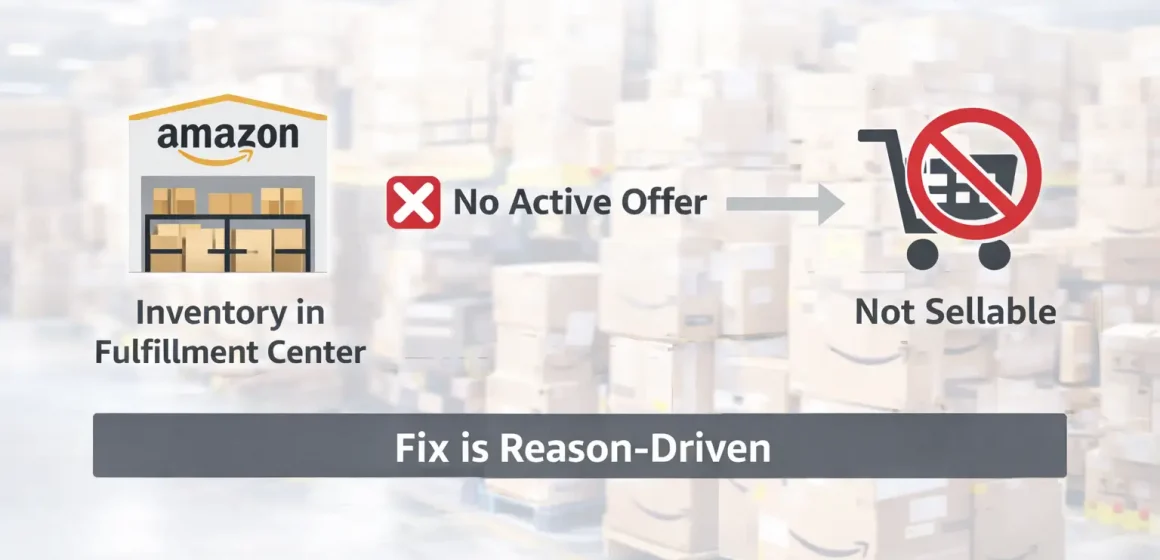
Stranded inventory means Amazon has your FBA units in its fulfillment network, but they’re not available for sale because the units have no associated active offer. Start by finding the stranded units in Seller Central, then use the stranded reason to choose the right fix.
Official reference: Stranded inventory overview (Seller Central Help)
Key points
- Stranded is usually an offer/listing availability problem, not automatically “lost inventory.”
- The fix is reason-driven: check Stranded reason and Additional information in Seller Central.
- Most outcomes are either restore sellability (reactivate the offer/listing) or remove inventory.
Boundaries
- There is no universal “one-click fix.” What works depends on the reason shown in Seller Central.
- Avoid assuming a single cause (or a single timeline) across all stranded SKUs.
What Is Stranded Inventory, Exactly? (Definition + What Happens to the Units)
Stranded inventory is FBA inventory that exists in Amazon’s fulfillment network but can’t be purchased because the SKU/ASIN doesn’t have an active offer tied to those units.
Official reference: Stranded inventory overview (Seller Central Help)
What happens operationally
- Units remain “in the system,” but you can’t sell them until you restore an active offer or take another action (such as removal).
- Inventory is tied up and sell-through stops until you intervene.
What stranded is NOT
- Not automatically a warehouse damage event.
- Not automatically “lost inventory.”
- Not automatically fixable the same way for every SKU.
Why Inventory Becomes Stranded: Common Reason Types
Inventory becomes stranded for different reasons, and the correct fix depends on what Seller Central shows in the Stranded reason and any related details.
Common reason types (checklist)
- Offer not active (the SKU is not currently sellable)
- Listing inactive, closed, or suppressed (listing/offer health issue)
- Fulfillment channel mismatch (offer isn’t set up correctly for FBA)
- Pricing/availability rules or offer settings that block an active offer
- Restricted/blocked status (category/ASIN gating or verification needed)
- Account/listing policy issues requiring action before selling can resume
- Catalog/data conflicts (offer exists but isn’t correctly associated)
- System errors or unclear reason that points you to contact support
Boundaries
- Exact wording varies by account and marketplace. Treat Seller Central’s reason fields as the source of truth.
- Some reasons require policy/compliance steps or a support case—avoid “guaranteed fix” framing.
Where to Find Stranded Inventory in Seller Central
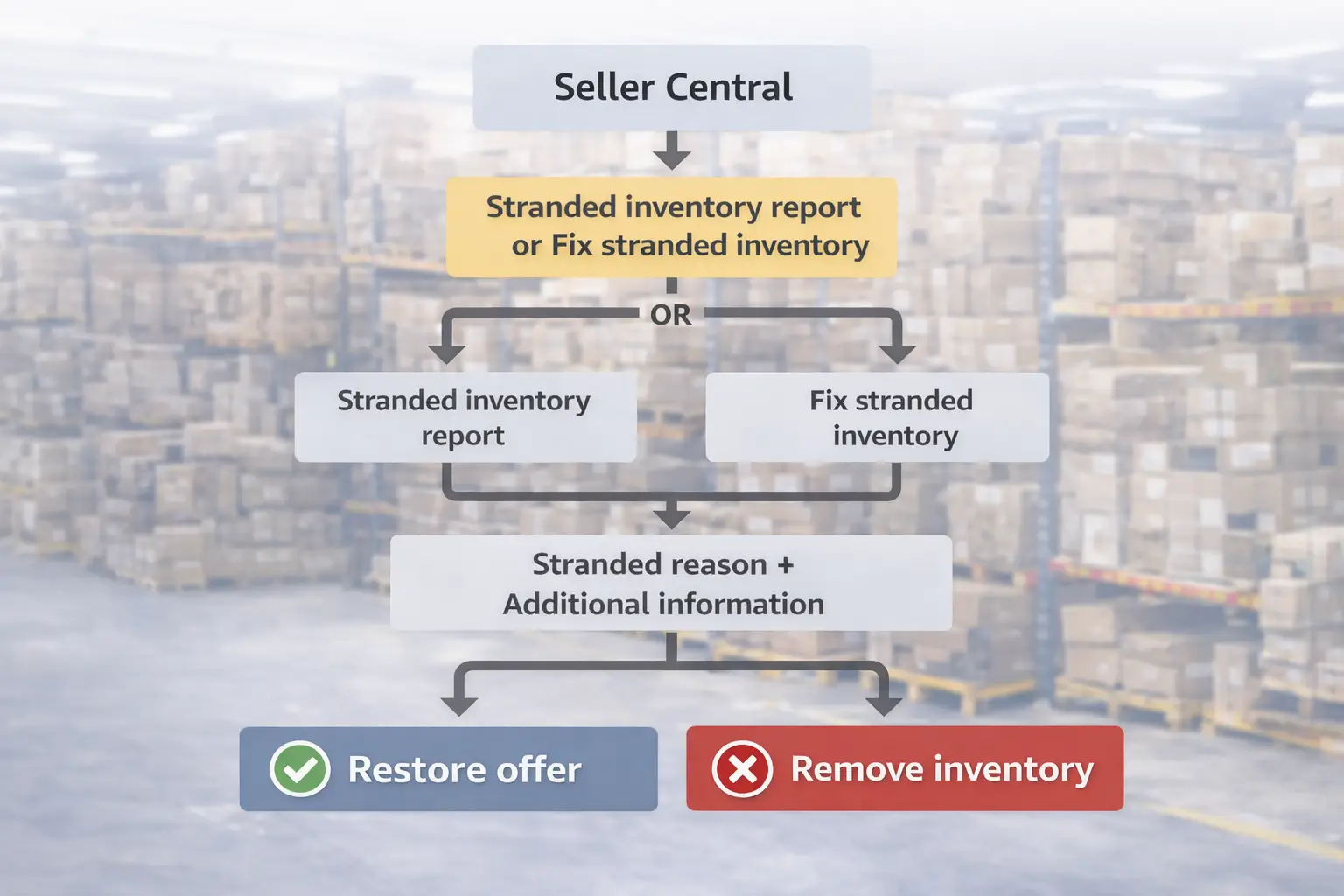
You’ll typically use either the Stranded inventory report or the “Fix stranded inventory” workflow to see stranded units, the reason, and suggested actions.
Steps (concept path)
- In Seller Central, open the FBA inventory area and locate stranded inventory tooling.
- Open the Stranded inventory report to see stranded SKUs and key columns.
- Open the “fix” workflow to view Stranded reason and the available action(s).
- Prioritize by units stranded and business impact.
- Take action: restore the offer/listing or decide on removal.
Official references:
- Stranded inventory report (Seller Central Help)
- Resolve stranded inventory issues (Seller Central Help)
What to look at first
- Stranded reason
- Additional information (if present)
- Whether Seller Central offers a direct action for that SKU
UI boundary: menus change. If your labels differ, follow the concept: open stranded inventory → view reason/details → take the listed action.
First 5 Minutes: A Reason-Driven Triage Workflow
Before you “try fixes,” do this quick triage so you don’t waste time on the wrong action.
- Open the stranded inventory list/report and pick one stranded SKU.
- Read Stranded reason and Additional information.
- Confirm whether the offer is active and correctly set for FBA.
- Look for the action Amazon provides (fix option, relist/reactivate, or instructions).
- Choose the path: restore sellability or remove inventory.
- After changes, re-check whether the SKU becomes sellable again.
- If the reason indicates a system/policy block, follow the guidance and use support channels as needed.
Boundary reminders
- The reason drives the action. Don’t assume the same fix applies to all stranded units.
- If the reason is unclear, prioritize clarity via Seller Central rather than random changes.
How to Fix Stranded Inventory: Restore the Offer or Remove the Units
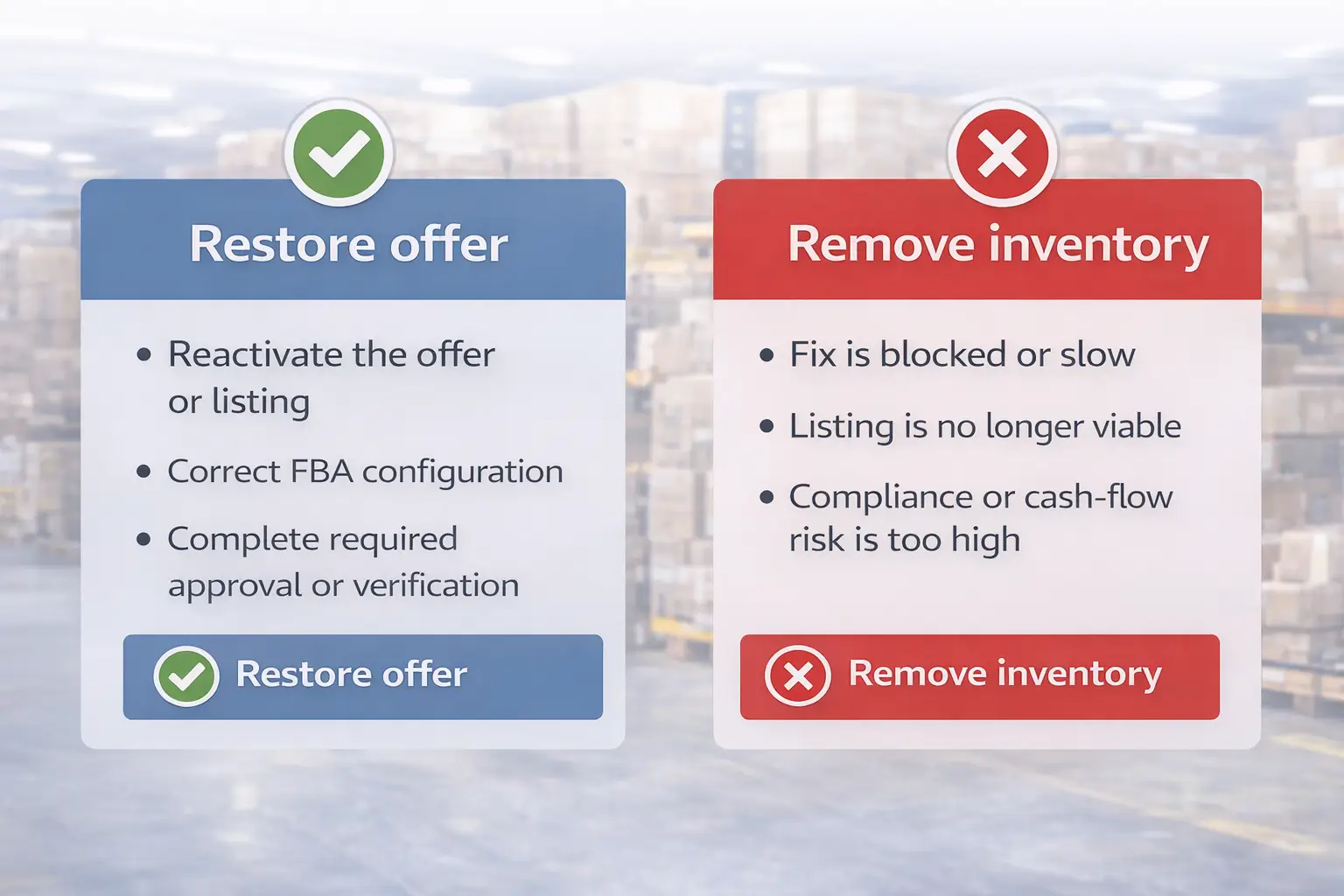
Most stranded inventory resolutions fall into one of two paths: restore an active offer or remove inventory.
Fix steps (reason-driven, practical)
- Open the stranded SKU in the fix workflow and read the reason + details.
- If the offer/listing is inactive, follow the action to restore sellability.
- If the issue is configuration-related, update the offer so it’s sellable via FBA.
- If the reason indicates a restriction/verification requirement, complete the required steps before expecting sellability to return.
- If the reason indicates a system issue, document the SKU/reason and use support channels as needed.
- If restoring sellability won’t be possible soon, move to the removal decision.
- Verify the result: confirm the SKU is sellable (or confirm the removal workflow is initiated).
Official reference: Resolve stranded inventory issues (Seller Central Help)
Restore vs remove (decision mini-table)
| Decision | When it usually makes sense | What you do next | Boundary / risk |
|---|---|---|---|
| Restore sellability | You can reactivate the offer/listing and sell normally again | Follow the fix action and verify the offer becomes active | Some reasons require compliance/support; no guaranteed reinstatement |
| Remove inventory | Fix is blocked, too slow, or listing is no longer viable | Create a removal order / choose an exit path | Context-dependent decision; confirm options in Seller Central |
Boundaries
- “Restore sellability” is not guaranteed. Some issues require steps outside simple listing edits.
- Don’t default to removal immediately, but don’t ignore time sensitivity either.
Stranded Reason → Typical Action Map (Use the Report Columns)
This table helps translate the type of stranded reason into the most likely next action. Exact text varies—follow what Seller Central shows for your SKU.
| Reason type (example category) | Typical action | Notes / what to check next |
|---|---|---|
| Offer inactive / no active offer | Reactivate the offer | Verify the offer is active and correctly set for FBA |
| Listing inactive / closed / suppressed | Fix listing issues and restore listing/offer status | Complete any listing quality/compliance tasks before re-checking sellability |
| Fulfillment channel mismatch | Correct offer configuration so it’s sellable via FBA | Confirm the offer is linked to the correct fulfillment channel/state |
| Pricing/availability settings block offer | Adjust offer settings so it can be active and purchasable | Re-check whether changes made the offer active |
| Restricted/blocked listing state | Complete required steps (approval/verification) | Do not assume “quick fix”; follow the requirements shown |
| Policy/enforcement-related blocks | Follow Seller Central guidance; open a case if needed | Avoid guesswork; document reason and required next steps |
| System error / unclear reason | Open a support case with SKU/ASIN and displayed reason | Treat as “needs clarification”; avoid random listing edits |
| Repeated re-stranding | Investigate root cause; consider removal if persistent | Combine fix + prevention routine; log the reason and what worked |
How to use “Additional information”
- Treat it as the “why now?” detail: it may point to a missing requirement or next step.
- If it indicates policy/compliance steps, complete those before expecting sellability to return.
- If it points to a system issue, capture notes/screenshots and use support channels.
Official reference: Stranded inventory report (Seller Central Help)
Boundaries
- Some reason types cannot be solved purely by bulk updates.
- No guarantees: policy/compliance and system reasons can require additional steps or support.
How to Fix Stranded Inventory in Bulk
Bulk fix is useful when you have many stranded SKUs with fixable, repeatable actions. It’s not universal.
Bulk fix workflow (high-level steps)
- Open the stranded inventory resolution area and choose the bulk option (when available).
- Download the bulk template/report.
- Update the required fields as instructed by the template (only for eligible SKUs).
- Upload the file and review processing results.
- Re-check stranded inventory to confirm what cleared and what remains.
- Handle remaining stranded SKUs individually using the reason fields.
Official references:
- Resolve stranded inventory issues (Seller Central Help)
- Bulk Fix Stranded Inventory report (Seller Central Help)
When bulk fix won’t work well
- The reason requires approval, verification, or policy steps.
- The reason indicates a system issue that needs support intervention.
- Reasons vary heavily across SKUs and need manual review.
Post-upload verification checklist
- Re-run the stranded inventory view to confirm which SKUs cleared.
- Confirm the offer is active and purchasable (not just “updated”).
- Document repeating reasons—those are prevention priorities.
When to Remove Stranded Inventory Instead of Fixing It
Removal can be the practical option when a fix is blocked, slow, or not worth the ongoing risk.
Decision checklist (consider removal when…)
- The reason indicates a block you can’t resolve soon (approval/verification/policy steps you can’t complete).
- The listing is no longer viable (pricing pressure, poor reviews, discontinued product).
- The product is seasonal and the stranded window risks missing the season.
- You have repeated re-stranding events and the SKU is operationally distracting.
- Cash flow pressure makes “inventory stuck” a bigger risk than removal.
- Compliance risk is high and you’d rather exit than fight the issue.
Boundary
- There’s no single right answer. Removal decisions depend on your business context and risk tolerance.
Prevention: Monitoring and Offer/Listing Hygiene
You can’t prevent every cause, but you can reduce repeat stranding with a routine.
Weekly prevention checklist
- Check the stranded inventory view/report and clear new items quickly.
- Confirm key SKUs have an active offer and are purchasable.
- Review repeated reason types and fix the root cause (configuration, listing hygiene, workflow).
- Keep a “known issues” log: SKU, reason type, what solved it, and what didn’t.
Before sending replenishment
- Confirm the offer is active and stable before shipping large replenishments.
- If a SKU has a history of stranding, reduce replenishment risk until the root cause is addressed.
Monitoring routine (simple)
- Smaller catalogs: weekly check.
- Larger catalogs: more frequent check + bulk workflows where eligible.
- Don’t rely on notifications alone—use a routine review.
Boundary
- Prevention reduces risk but can’t eliminate all causes (policy/system issues can still occur).
Stranded vs Reserved vs Unfulfillable Inventory
These statuses are often confused. They usually indicate different underlying situations and actions.
| Status | What it usually indicates | What to do next |
|---|---|---|
| Stranded | Inventory exists but isn’t sellable due to no active offer | Check stranded reason and restore offer or remove |
| Reserved | Units are reserved for orders, transfers, or processes | Identify the reservation type and monitor movement |
| Unfulfillable | Units are not sellable due to damage/condition/other issues | Review unfulfillable reason and decide on removal/disposal |
Boundary
- Terminology and sub-status labels can vary. Confirm the exact meaning in your Seller Central account.
FAQ: Stranded Inventory Amazon FBA
What is stranded inventory in Amazon FBA?
A: Stranded inventory is FBA stock in Amazon’s fulfillment network that isn’t available for sale because it has no associated active offer. Start by checking the stranded inventory report and the stranded reason.
Why does inventory become stranded?
A: Common causes include inactive offers, suppressed/closed listings, fulfillment channel mismatches, restrictions/verification needs, or system issues. The fix depends on the stranded reason shown in Seller Central.
Where do I find stranded inventory in Seller Central?
A: Use Seller Central’s stranded inventory tooling (report/workflow). Official reference: Stranded inventory report (Seller Central Help)
How do I fix stranded inventory?
A: Read the stranded reason, then choose the path: restore sellability (reactivate the offer/listing) or remove inventory if restoring isn’t feasible soon. Official reference: Resolve stranded inventory issues (Seller Central Help)
What does the Stranded reason mean and what actions typically fix it?
A: It’s the reason category Seller Central provides for why the offer isn’t active. Use it to choose the next step (restore offer/configuration, complete required steps, or open a case if it’s a system/policy block). The action depends on the reason.
How do I fix stranded inventory in bulk?
A: Use the bulk fix workflow/report for eligible stranded SKUs: download the template, edit required fields, upload, and verify what cleared. Official reference: Bulk Fix Stranded Inventory report (Seller Central Help)
Summary: Fix Stranded Inventory with a Reason-Driven Workflow
Stranded inventory means your FBA units exist in Amazon’s fulfillment network but can’t be sold because there’s no active offer. The fastest way to resolve it is reason-driven: find the stranded units, read the reason/details, then restore sellability or remove inventory.
Practical next steps
- Open the stranded inventory report/workflow and prioritize high-impact SKUs.
- Use the reason→action table to choose the right fix path.
- Use bulk fix workflows where eligible, and verify results after uploads.
- If restoring sellability isn’t feasible soon, use a removal decision checklist instead of letting inventory sit.
- Put a monitoring routine in place to reduce repeat stranding.
If stranded inventory repeatedly happens around replenishment cycles, consider standardizing your inbound process (SKU/label accuracy, carton planning, and documentation) so operational mistakes don’t add avoidable complexity. For sellers sourcing from China, a China-side prep/consolidation partner can help keep inbound shipments consistent. (Optional reference: https://fbabee.com/)